State Management & History
State management in Arranger is centered around @Stable class RichTextState, strictly adhering to Compose state hoisting principles. It serves as the Single Source of Truth (SSOT), encapsulating text content, attribute spans, cursor selection, undo/redo history, and pending typing attributes.
Core Properties of RichTextState
@Stable
class RichTextState(initialText: RichString = RichString("")) {
    // Immutable data structure holding the current text and all formatted spans
    val richString: RichString

    // Current selection range (cursor position or dragged selection range)
    val selection: TextRange

    // Pending attributes reserved for subsequent keystrokes
    val typingAttributes: AttributeContainer?

    // Effective attributes over the current selection, calculated via logical intersection
    val currentAttributes: AttributeContainer

    // Undo / Redo history management object
    val undoState: RichTextUndoState
}
Typing Attributes Lifecycle
In word processors and rich text editors, a standard interaction is tapping the Bold button with no text selected, followed by typing characters that appear bold. Arranger models this behavior via typingAttributes.
1. Reservation Flow
sequenceDiagram
    participant User as User
    participant Toolbar as Toolbar (Bold Button)
    participant State as RichTextState
    participant Editor as Editor (BasicTextField)

    User->>Toolbar: Tap Bold button (collapsed selection)
    Toolbar->>State: toggleFormat(BoldKey)
    Note over State: Reserve BoldKey in typingAttributes
    User->>Editor: Type character 'A'
    Editor->>State: Text mutation event
    Note over State: Automatically attach BoldKey span to inserted 'A'<br/>Preserve typingAttributes
2. Attribute Exclusion Reservation (removedTypingAttributes)
When toggling bold OFF at the trailing boundary of an existing bold span, removedTypingAttributes records the exclusion reservation so subsequent keystrokes revert to unstyled regular text instead of inheriting previous styling.
3. Automatic Discard on Caret Relocation
Crucial Lifecycle Behavior
If the user moves the cursor (via arrow keys or tapping elsewhere on the screen) after reserving typing attributes without typing any character, the pending typing attributes are automatically discarded.
The effective attributes at the new cursor position (regular text if unstyled, bold if inside a bold span) are immediately re-evaluated into currentAttributes.
Current Attributes & Logical Intersection Logic
Determining whether toolbar buttons (such as Bold or Italic) should appear active depends on the user's current selection.
Arranger calculates state.currentAttributes using a strict logical intersection algorithm:
- Collapsed selection (
selection.collapsed == true):- Returns
typingAttributesif present. - Otherwise, returns attributes at the immediate cursor boundary.
- Returns
- Non-collapsed selection (
!selection.collapsed):- Returns only attributes present across 100% of the selected characters.
Example Walkthrough
Consider the following formatted string:
Hello World
- Selecting "Hello": Both
BoldKeyandTextColorKey(Blue)are present across all selected characters and included incurrentAttributes. - Selecting "Hello World": Only
BoldKeyis shared across every selected character;TextColorKeyis excluded because it does not cover "World". - Selecting "o W" (boundary): Because the intervening space has no formatting,
currentAttributesis an empty set.
This logical intersection model ensures toolbar buttons can simply query state.currentAttributes.containsKey(BoldKey) without manual calculation.
Atomic Batch Mutations with RichTextBuffer
To mutate text content and styling simultaneously, use state.edit { ... }. The scoped RichTextBuffer provides rich editing operations:
state.edit {
    // 1. Insert text with styles
    insert(index = 0, text = "Title\n") {
        bold()
        headingLevel(HeadingLevel.H1)
    }

    // 2. Replace text range
    replace(range = 10..15, text = "replacement text") {
        italic()
    }

    // 3. Delete text (spans are automatically trimmed/shifted)
    delete(range = 20..25)

    // 4. Apply attributes across existing range
    editAttributes(range = 0 until textLength) {
        textColor(Color.DarkGray)
    }
}
Upon exiting the edit block, all mutations are committed in a single snapshot, triggering Compose recomposition atomically.
Undo & Redo History (RichTextUndoState)
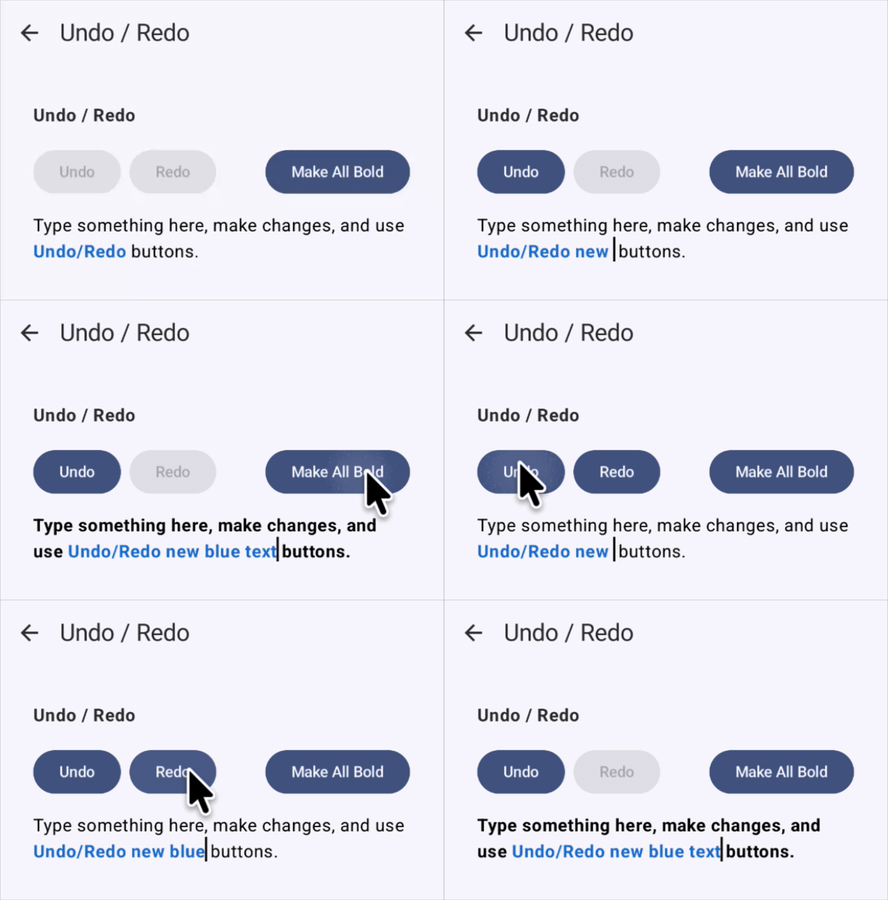
Arranger includes a built-in undo/redo engine that tracks both plain text modifications and attribute span mutations.
Primary APIs
state.undoState.canUndo: Indicates whether undoable history exists (bind to buttonenabledstate).state.undoState.canRedo: Indicates whether redoable history exists.state.undoState.undo(): Reverts the most recent operation.state.undoState.redo(): Reapplies the previously reverted operation.state.undoState.clearHistory(): Clears the undo/redo history stacks.
Wiring Toolbar Buttons
Row {
    IconButton(
        onClick = { state.undoState.undo() },
        enabled = state.undoState.canUndo,
        modifier = Modifier.focusProperties { canFocus = false },
    ) {
        Icon(Icons.Default.Undo, contentDescription = "Undo")
    }

    IconButton(
        onClick = { state.undoState.redo() },
        enabled = state.undoState.canRedo,
        modifier = Modifier.focusProperties { canFocus = false },
    ) {
        Icon(Icons.Default.Redo, contentDescription = "Redo")
    }
}
Keyboard Shortcuts
Native keyboard shortcuts (Cmd/Ctrl + Z and Shift + Cmd/Ctrl + Z) are automatically handled by the editor component.
Intelligent Mutation Coalescing
Creating a separate undo entry for every single keystroke forces users to press undo dozens of times just to revert a single word. Arranger coalesces mutations automatically:
- Continuous alphanumeric typing: Coalesced into a single undo step.
- Whitespace, newlines (Enter), Backspace, and paste events: Discrete operation boundaries that split coalescing batches.
- History stack capacity: Retains the 100 most recent operations to bound memory usage.
Loading External Documents (setRichString)
To replace the entire editor content when loading documents or creating new files, use setRichString.
val newContent = RichString("New document loaded from external source")
state.setRichString(newContent)
Calling setRichString safely executes the following operations:
- Replaces the text and all spans with the new content.
- Clears pending
typingAttributes. - Resets the undo/redo history stack.
- Automatically clamps the cursor position to the end of the new text or within valid bounds.
State Preservation Across Android Configuration Changes & Process Death
When building Compose applications—especially on Android—state preservation requires careful attention to the underlying platform lifecycle.
Understanding Android Lifecycle Constraints
Unlike desktop or web environments where processes run continuously without UI teardown, Android enforces unique lifecycle constraints that every developer must navigate:
- Configuration Changes (Android-Specific):
Events like screen rotation, fold/unfold on foldables, dark/light theme toggling, and multi-window resizing cause Android to completely destroy and recreate the hosting
Activityand Composable hierarchy. Standardremember { ... }state is discarded during this recreation. - Process Death & OS Memory Reclamation (Android-Specific):
When an application is in the background, the Android operating system may terminate the hosting process under memory pressure (via the Low Memory Killer). When the user returns, the application must restore its state from the OS-managed
savedInstanceStateBundle. - The 1MB Binder Transaction Limit (
TransactionTooLargeException): Data preserved via Compose'srememberSaveableis ultimately transmitted through Android's inter-process communication (IPC) Binder transaction buffer, which is strictly capped at approximately 1MB for the entire application. Attempting to serialize large text documents or extensive undo histories into aBundlecan crash the app with a fatalTransactionTooLargeException.
Non-Android Platforms (Desktop, iOS, Web/Wasm)
On Desktop, iOS, and Web/Wasm, Activity recreation and the 1MB Android Binder limit do not apply. However, rememberRichTextState() functions consistently across all Compose Multiplatform targets, supporting in-app navigation backstacks and platform-level state saving seamlessly.
Arranger provides two complementary approaches to handle state preservation depending on your editing use case:
1. Composable Scope: rememberRichTextState (Standard & Short-to-Medium Text)
For standard editors, chat composer fields, comment inputs, or form fields, use rememberRichTextState(). It automatically integrates with Compose's rememberSaveable and utilizes RichTextState.Saver to persist and restore editor state across Android configuration changes and process death out of the box:
@Composable
fun NoteEditorScreen() {
    // Automatically survives Android configuration changes (screen rotation) and process death
    val state = rememberRichTextState(
        initialText = RichString(text = "Hello Arranger!"),
    )

    RichTextEditor(state = state)
}
What is Saved vs. Excluded
| Data Item | Preserved | Rationale / Behavior |
|---|---|---|
text |
 |
Raw text string is completely restored. |
selection |
|
Cursor position and selection range (including reversed selection) are restored. |
spans |
|
All built-in attributes (bold, italic, colors, headings, lists, links, etc.) are serialized. Custom attributes use registered serializers. |
typingAttributes |
|
Pending keyboard styles reserved at cursor are maintained. |
undoState |
 |
Intentionally excluded. Storing dozens of full document snapshots causes Android Bundle size explosions (TransactionTooLargeException). Restored instances reset with a clean, safe history (matching standard Android EditText and Compose rememberTextFieldState). |
2. Long-Form Document Scope: Android ViewModel Hoisting Pattern
For long-form documents, article editors, or applications where undo/redo history must survive screen rotation, hoist RichTextState directly in an Android ViewModel:
class EditorViewModel : ViewModel() {
    // Hoisted in memory: survives Android configuration changes with 100% of undo history intact!
    val state = RichTextState(
        initialText = RichString(text = "Long document content..."),
    )

    fun onSaveDocument() {
        val currentContent = state.richString
        // Persist to local database (e.g., Room) or file storage
    }
}

@Composable
fun DocumentEditorScreen(viewModel: EditorViewModel = viewModel()) {
    // UI simply observes and controls the ViewModel-held state
    RichTextEditor(state = viewModel.state)
}
Why ViewModel Hoisting Excels for Long Documents on Android:
- Zero Bundle Overhead & Zero Crash Risk: The
ViewModelremains in memory across Activity recreations (screen rotations). Because no Binder IPC orBundleserialization occurs, there is zero risk ofTransactionTooLargeException, even with 100,000+ characters. - Full Undo/Redo Preservation: Undo and redo stacks survive screen rotation completely intact without memory duplication.
- Zero Serialization Latency: Recreating the Composable UI tree simply rebinds to the existing in-memory state object without parsing overhead.
Handling Android Process Death for Long Documents
Because Android Bundles are limited to ~1MB across the entire app, long-form documents should never rely on SavedStateHandle or Bundle for full text persistence across process death. Instead, implement a debounce auto-save pattern that periodically writes state.richString into a local SQLite database (e.g. Room) or local disk, and store only the document ID in SavedStateHandle to reload on process restoration.
3. Custom Attribute Serialization (AttributeSerializer)
If you define custom AttributeKey<T> types, register them with AttributeSerializer so RichTextState.Saver knows how to serialize and restore your custom values:
data class NoteAnnotation(val comment: String)

val NoteAnnotationKey = object : SpanAttributeKey<NoteAnnotation> {
    override val name: String = "noteAnnotation"
    override val defaultValue: NoteAnnotation = NoteAnnotation(comment = "")
}

// 1. Define custom serializer
val noteSerializer = attributeSerializer(
    key = NoteAnnotationKey,
    save = { note -> note.comment },
    restore = { saved -> NoteAnnotation(comment = saved as String) },
)

// 2. Create custom Saver
val customSaver = RichTextState.saver(
    customSerializers = listOf(noteSerializer),
)

// 3. Use in Composable
@Composable
fun CustomEditorScreen() {
    val state = rememberRichTextState(
        saver = customSaver,
    )

    RichTextEditor(state = state)
}
Related Documentation
- RichTextEditor Basics: Editor component placement and UI parameters.
- Spans and Paragraphs: Differences between span and paragraph attributes.
- Toolbar Integration: High-level helper APIs such as
toggleFormatand focus protection tips.